Strategies for Architecting a High-Performance Web Application on Azure
Strategies for Architecting a High-Performance Web Application on Azure

Meta Description: Explore the best practices and architectural strategies for building a high-performance, scalable, and secure web application on Microsoft Azure. Learn from a Senior Cloud Architect's real-world experience and insights.
Introduction – Strategic context & business value
In today's digital landscape, the need for robust, scalable, and high-performance web applications is more pressing than ever. As a Senior Cloud Architect specializing in Microsoft Azure, I've seen firsthand how a well-architected web application can drive business value by providing a resilient and scalable platform for delivering services. Azure offers a rich set of tools and services that make it an ideal choice for architecting modern web applications. This post aims to delve deep into the architectural strategies and best practices for deploying such applications on Azure.
Technical Architecture Overview
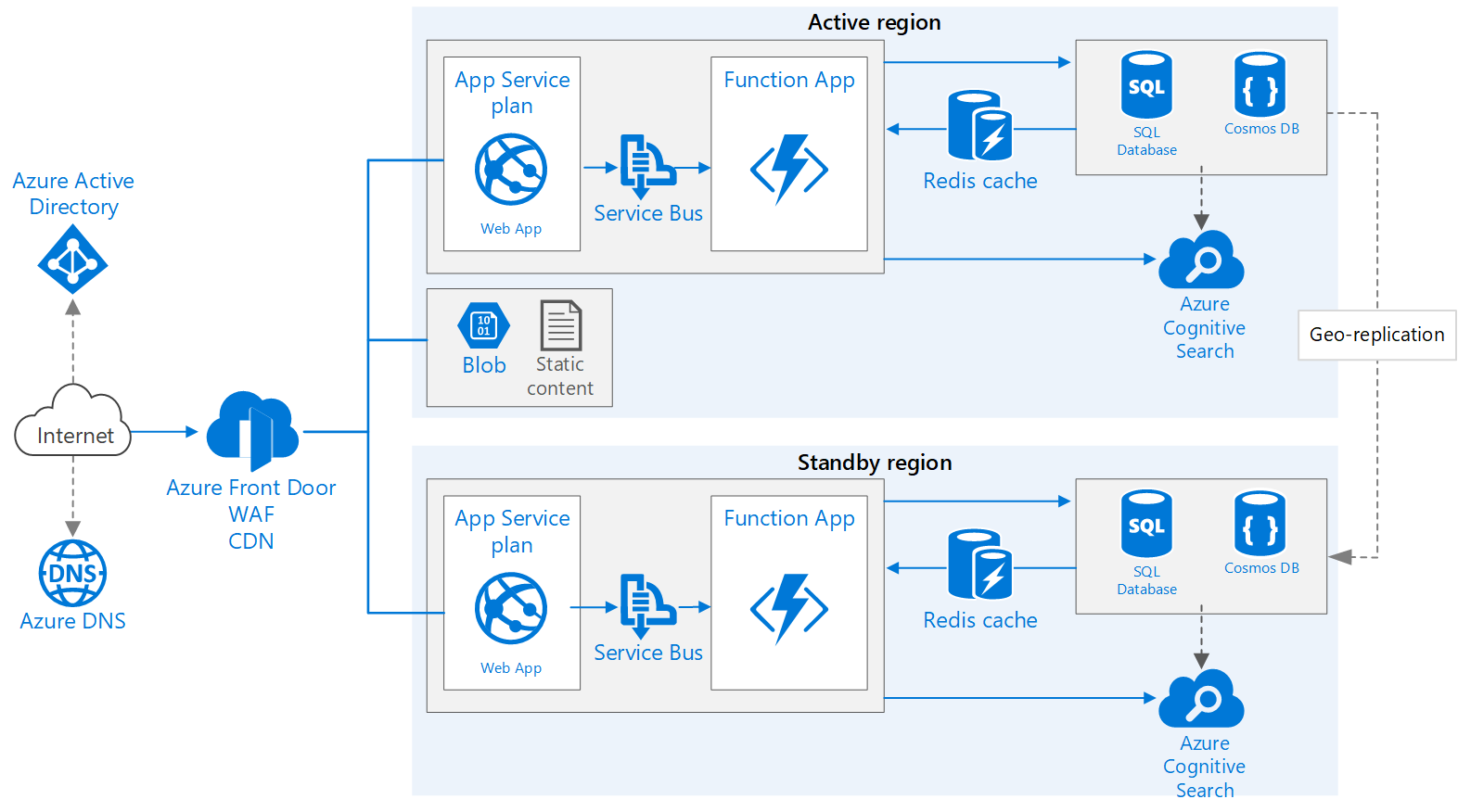
A well-architected web application on Azure should be designed to leverage Azure's global infrastructure, ensuring high availability, fault tolerance, and scalability. A typical architecture might include the following components:
Azure App Service for hosting web applications.
Azure SQL Database or Azure Cosmos DB for data storage.
Azure Blob Storage for static content and assets.
Azure CDN for content delivery.
Azure Active Directory for identity and access management.
Azure Monitor and Azure Application Insights for monitoring and diagnostics.
For illustration, a common architecture might look something like this:

Configuration Walkthrough
1. Setting Up Azure App Service
Step 1: Create an Azure App Service Plan
Navigate to the Azure portal, search for "App Service Plans," and click on "Create."
- Choose a unique name for the plan.
- Select the appropriate OS (Windows or Linux).
- Choose the pricing tier based on your application's needs (e.g., Production S1).
Step 2: Create a Web App within the Service Plan
Search for "Web App" in the Azure portal and click on "Create."
- Select a subscription and resource group.
- Name your web app uniquely.
- Choose the runtime stack (e.g., .NET, Java, Node.js, Python).
- Select the previously created App Service Plan.
2. Configuring Azure SQL Database
Step 1: Create a SQL Database Server
Search for "SQL databases" in the Azure portal and click on "Create SQL Database."
- Select a resource group.
- Name your database.
- Click on "Create new" for the server and fill in the required details such as server name, admin login, and password.
Step 2: Configure Database Connection String in Web App
Go to your web app's "Configuration" settings and add a new connection string.
- Name the connection string (e.g., "DefaultConnection").
- Paste the connection string obtained from the SQL database "Connection strings" tab.
3. Setting Up Azure Blob Storage
Step 1: Create a Storage Account
Search for "Storage accounts" in the Azure portal and click on "Create."
- Select a resource group.
- Name your storage account uniquely.
- Choose the appropriate region.
- Select the "Performance" tier (standard or premium).
Step 2: Create a Blob Container
Once the storage account is created, go to the "Blob service" section and click on "Containers."
- Click on "+ Container" and give it a name (e.g., "uploads").
- Set the public access level as needed (e.g., "Private").
4. Azure CDN for Content Delivery
Step 1: Create a CDN Profile
Search for "CDN profiles" in the Azure portal and click on "Create."
- Select a resource group.
- Name your CDN profile.
- Choose the pricing tier (e.g., "Standard Verizon").
Step 2: Create a CDN Endpoint
Once the CDN profile is created, click on "+ Endpoint" within the profile.
- Name your endpoint uniquely.
- Select "Storage" as the origin type and choose your storage account.
- Configure additional settings such as "Origin path" and "Origin host header" if needed.
Troubleshooting & Monitoring
Monitoring and troubleshooting are crucial for maintaining the health and performance of your web application. Azure provides several tools to aid in this:
Azure Monitor: Collects and analyzes telemetry data from your web application and infrastructure. You can set up alerts based on metrics such as response time, error rate, and CPU usage.
Azure Application Insights: Part of Azure Monitor, it provides deeper insights into application performance and usage. You can track dependencies, exceptions, requests, and custom events.
Log Analytics: Part of Azure Monitor, it allows you to query logs from various Azure services and set up custom queries and dashboards.
To set up Application Insights for your web app, go to the "Application Insights" section within your web app settings and click on "Turn on Application Insights." Follow the prompts to enable it.
Enterprise Best Practices 🚀
Security-first design: Utilize Azure Security Center for unified security management and advanced threat protection. Implement network security groups (NSGs) and Azure Firewall to control inbound and outbound traffic.
Role-based access control (RBAC): Assign roles and permissions using Azure Active Directory to ensure that only authorized users have access to sensitive resources.
Automated backups and disaster recovery: Use Azure Backup and Azure Site Recovery to ensure that your data is regularly backed up and can be restored in case of a disaster.
Scalability: Leverage auto-scaling features in Azure App Service and database services to automatically adjust resources based on load.
High Availability: Deploy your application across multiple Azure regions and use Azure Traffic Manager for load balancing and failover.
Conclusion
Architecting a high-performance web application on Azure requires a strategic approach that leverages Azure’s robust suite of services. By following the best practices and architectural strategies outlined in this post, you can build a scalable, secure, and resilient web application that meets the demands of modern businesses. Whether you are dealing with high traffic, need robust security, or require global reach, Azure provides the tools and infrastructure to make it happen. As a Senior Cloud Architect, I highly recommend continuously monitoring and optimizing your architecture to adapt to changing business needs and technological advancements.


Comments
Post a Comment