Posts

Showing posts with the label O365 Admin

Deep Dive into Microsoft Defender for Office 365: Plan 1 vs. Plan 2 - Licensing, Features, Comparison, and Step-by-Step Policy Configuration

Image
Deep Dive into Microsoft Defender for Office 365: Plan 1 vs. Plan 2 - Licensing, Features, Comparison, and Step-by-Step Policy Configuration Meta Description: Learn about Microsoft Defender for Office 365 Plan 1 and Plan 2, including licensing, features, comparisons, and step-by-step policy configurations for enhancing email security in enterprise environments. Introduction As a Senior Cloud Architect, one of the critical components of a secure cloud infrastructure is ensuring robust email security. Microsoft Defender for Office 365 is a cloud-based email filtering service that helps protect organizations against unknown malware and viruses by providing robust zero-day protection and includes features to safeguard against phishing links and malicious URLs. This blog post will delve into two of its main plans—Microsoft Defender for Office 365 Plan 1 and Plan 2—comparing their licensing, features, and providing a step-by-step walkthrough on configuring various policies available ...

Mastering Office 365 Tenant-to-Tenant Migration with BitTitan: A Step-by-Step Guide for IT Professionals

Image
Mastering Office 365 Tenant-to-Tenant Migration with BitTitan: A Step-by-Step Guide for IT Professionals Meta Description: Learn how to seamlessly migrate from one Office 365 tenant to another using BitTitan. This step-by-step guide covers everything from planning to execution, ensuring a smooth transition for your enterprise. Introduction In today’s dynamic business landscape, mergers, acquisitions, and organizational restructuring often necessitate the migration of email and data from one Office 365 tenant to another. Such migrations can be complex, requiring meticulous planning and execution to ensure a seamless transition. Among the tools available for this task, BitTitan's MigrationWiz stands out for its robust features and user-friendly interface. As a Senior Cloud Architect, I have led multiple tenant-to-tenant migrations using BitTitan and have compiled a step-by-step guide to help IT professionals navigate this process effectively. 🚀 Strategic Importance of Tena...

How to Disable Personal OneDrive Account Syncing for Work Accounts Using Microsoft Intune

Image
How to Disable Personal OneDrive Account Syncing for Work Accounts Using Microsoft Intune Meta Description: Learn how to disable personal OneDrive account syncing on corporate devices managed by Microsoft Intune. This guide provides step-by-step instructions for IT professionals to ensure that only work accounts can sync files through OneDrive. Introduction In today's hybrid work environment, it is crucial for IT administrators to maintain a clear separation between personal and corporate data on company-managed devices. One common challenge is preventing users from syncing their personal OneDrive accounts on work devices, thereby ensuring that only work-related OneDrive accounts are active. This blog post will walk you through the process of disabling personal OneDrive account syncing for work accounts using Microsoft Intune. 🚀 Microsoft Intune offers a robust set of policies that allow IT administrators to configure settings on managed devices. By leveraging Intune, a...

How to Increase Outlook OST/PST File Size Limit to 100GB

Image
📧 How to Increase Outlook OST/PST File Size Limit to 100GB Microsoft Outlook, by default, limits the size of Offline Storage Table (OST) and Personal Storage Table (PST) files to 50GB However, for users with extensive email archives, this limit may be restrictive Fortunately, you can extend this limit to 100GB by modifying specific registry entries ⚙️ Prerequisites Outlook Version :2010, 2013, 2016, 2019, or Microsoft 365 Operating System :Windows 10 or later Permissions :Administrator access to modify the Windows Registry Backup :Always back up your registry before making changes 🛠️ Steps to Modify the Registry 1. Open the Windows Registry Editor Press Win + R , type regedit , and press Ente. 2. Navigate to the Outlook Registry Key Depending on your Outlook version, navigate to the following pat: Outlook 2010 HKEY_CURRENT_USER\Software\Microsoft\Office\14.0\Outlook\PS Outlook 2013 HKEY_CURRENT_USER\Software\Microsoft\Office\15.0\Outlook\PS Outlook...

Difference Between Distribution Group and Dynamic Distribution Group in Microsoft 365

Image
Difference Between Distribution Group and Dynamic Distribution Group in Microsoft 365 In Microsoft 365 (formerly Office 365), distribution groups and dynamic distribution groups are used to send emails to multiple recipients at once. However, they work in different ways, and each has specific use cases. Let’s explore both types step by step to understand the differences in detail. 1. What is a Distribution Group (DG)? A Distribution Group (also known as a Mailing List ) is a collection of users, groups, and mail-enabled objects that allows you to send an email to all members of the group simultaneously. Characteristics of a Distribution Group: Static Membership : Members of a distribution group are explicitly added and removed manually by the administrator. No Filtering : Once you add someone to the distribution group, they are always included in email deliveries, unless manually removed. Mail-Enabled Group : It has an email address associated with it, and users can send emai...

What is Elasticity in Cloud Computing?

Image
What is Elasticity in Cloud Computing? Elasticity in cloud computing refers to the ability of a cloud environment to automatically scale resources (such as computing power, storage, and networking) up or down based on demand. This ensures that the cloud system efficiently adapts to varying workloads, optimizing resource use and cost. In simpler terms, elasticity allows cloud services to expand when more resources are needed and contract when fewer resources are required, without manual intervention. Step-by-Step Process Description of Elasticity in Cloud Computing Here’s an in-depth explanation of elasticity in cloud computing, broken down into easy-to-understand steps: 1. Understanding Cloud Resources and Workloads Cloud Resources : These are the computing resources provided by a cloud service provider (like Amazon AWS, Microsoft Azure, or Google Cloud). Common resources include: Compute Power : Virtual machines (VMs), CPU, RAM, etc. Storage : Data storage services lik...

Hybrid Networking in Azure: Step-by-Step Process

Image
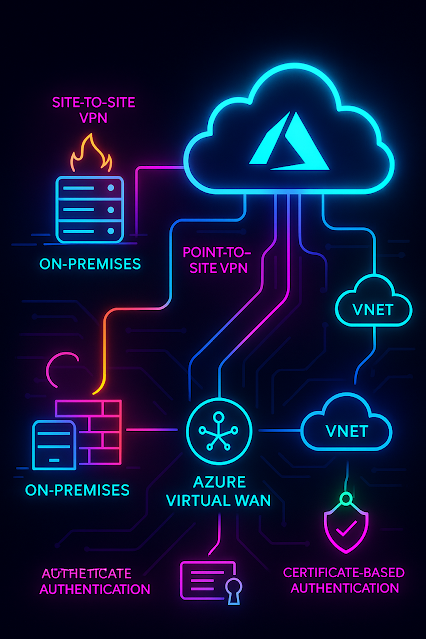
Hybrid Networking in Azure: Step-by-Step Process Hybrid networking in Azure allows you to connect your on-premises infrastructure with Azure resources. This enables seamless communication between on-premises networks and Azure Virtual Networks (VNets). The common ways to establish hybrid networking are via VPN connections , Azure Virtual WAN , and other connectivity solutions like ExpressRoute. In this module, we will cover the following learning objectives, with step-by-step guidance on how to implement each of them: Design and implement a site-to-site VPN connection . Design and implement a point-to-site VPN connection . Design and implement authentication for point-to-site VPN connections . Design and implement Azure Virtual WAN . 1. Design and Implement a Site-to-Site VPN Connection A Site-to-Site VPN connection securely connects your on-premises network to an Azure Virtual Network (VNet) over the internet. This is typically used to extend your on-premises network to Azu...

Introduction to Azure Virtual Networks: Learning Objectives and Step-by-Step Process

Image
Introduction to Azure Virtual Networks: Learning Objectives and Step-by-Step Process Azure Virtual Networks (VNets) are one of the core building blocks of Azure's networking platform. They provide a secure, isolated environment for your Azure resources to communicate with each other, with on-premises resources, and the internet. In this module, you will learn how to implement, configure, design, and troubleshoot key aspects of Azure Virtual Networks. Below is a detailed step-by-step description of each learning objective. Learning Objectives At the end of this you will be able to do the following by your Own: Implement virtual networks . Configure public IP services . Design and implement name resolution . Design and implement cross-VNet connectivity . Implement virtual network routing . Design and implement an Azure Virtual Network NAT . Let's break down each of these objectives with detailed steps. 1. Implement Virtual Networks A Virtual Network (VNet) is a lo...

Step-by-Step Process to Upload PST Files to Office 365 (Network Upload)

Image
Step-by-Step Process to Upload PST Files to Office 365 (Network Upload) Uploading PST files to Office 365 (now Microsoft 365) is a common task,  especially during migrations, data recovery, or restoring old emails. The Network Upload method allows IT administrators to upload PST files to Microsoft 365 mailboxes using Azure Storage. The data is then imported into users' mailboxes. This guide will walk you through the Network Upload process step by step. It’s designed for IT professionals who are new to this task. 1. Prerequisites Before you begin, make sure you have the following: Microsoft 365 Admin Access : Ensure you have admin credentials to access the Microsoft 365 Admin Center and Exchange Admin Center (EAC). Mailbox Import Export Role : You need to assign the Mailbox Import Export role to your admin account to perform the import operations. AzCopy Tool : A command-line tool provided by Microsoft to upload PST files to Azure Storage. PST Files : The PST files you wish ...