Optimizing Data Storage with Azure Blob Storage: A Deep Dive for IT Professionals
Optimizing Data Storage with Azure Blob Storage: A Deep Dive for IT Professionals

Meta Description: Discover how to effectively implement and manage Azure Blob Storage for high-performance data storage solutions. Learn key configurations, best practices, and advanced troubleshooting techniques for IT professionals.
Introduction
In today's digital world, the need for robust, scalable, and secure data storage solutions has never been greater. As a Senior Cloud Architect, I've seen firsthand how Azure Blob Storage can be a game-changer for businesses looking to store unstructured data such as text or binary data. Azure Blob Storage offers a highly scalable, secure, and cost-effective solution for storing massive amounts of unstructured data such as text or binary data. This blog post will provide a deep dive into Azure Blob Storage, covering everything from business context and strategic importance to implementation architectures and advanced troubleshooting techniques. 🚀
Technical Architecture Overview
Azure Blob Storage is designed to handle a variety of unstructured data types such as images, videos, logs, backups, and more. It is part of the Azure Storage services, which also include Azure Files, Azure Queue Storage, and Azure Table Storage. However, Blob Storage is specifically optimized for storing large amounts of unstructured data. 🗄️
Blob Storage organizes data into "containers," which are similar to directories in a file system. Within these containers, you store your "blobs," which can be block blobs, append blobs, or page blobs. Block blobs are ideal for storing text and binary data such as documents and media files, append blobs are optimized for append operations such as logging, and page blobs are used primarily for random read/write operations such as virtual machine disks.
Here's a high-level architecture diagram for a typical Azure Blob Storage deployment:
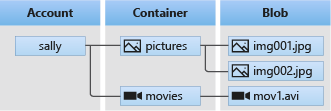
Image Source: Microsoft Azure Documentation
Configuration Walkthrough
Create an Azure Storage Account:
- Log into the Azure Portal.
- Click on "Create a resource" and search for "Storage account."
- Click "Create" and fill in the required fields such as Subscription, Resource Group, Storage Account Name, Region, and Performance (Standard or Premium). Usually, the "Standard" tier is sufficient for most use cases unless you need high-performance SSDs for page blobs.
- Review and click "Create."
Create a Blob Container:
- Once the storage account is created, navigate to your storage account in the Azure Portal.
- In the left-hand menu, under "Blob service," click on "Containers."
- Click on the "+ Container" button.
- Provide a name for your container (e.g., "logs") and set the Public access level (Private, Blob, or Container). For most business applications, "Private" is the recommended setting for security.
- Click "OK."
Upload Blobs to the Container:
- Within your newly created container, click on the "Upload" button.
- Select files from your local machine to upload as block blobs.
- You can also set advanced options such as the Blob type (Block blob), Block size, and Authentication type.
- Click "Upload."
Access Blobs Programmatically:
- To access Azure Blob Storage programmatically, you need the storage account name and an access key or a Shared Access Signature (SAS) token.
- Navigate to your storage account and click on "Access keys" under "Settings" to find your account name and keys.
- Use Azure Storage SDKs available for various programming languages such as .NET, Java, Python, and Node.js to interact with your blobs.
Troubleshooting & Monitoring
Azure Blob Storage provides several monitoring and troubleshooting tools such as Azure Monitor, Azure Storage Analytics, and Azure Diagnostics. These tools help you monitor the health and performance of your storage account and diagnose issues when they arise. 🔍
Azure Monitor: Provides integrated monitoring capabilities for your Azure resources. You can set up alerts based on metrics such as transaction counts, latency, availability, and storage capacity.
- Logs and Metrics: Monitor key metrics such as blob capacity, transactions, egress, ingress, and availability.
- Alerts: Set up alerts for specific thresholds like transaction failures or high latency.
Azure Storage Analytics: Provides logging and metrics data that can be used to trace requests, analyze usage patterns, and diagnose issues with your storage account.
- Enable it in the "Diagnostic settings" section of your storage account.
Azure Diagnostics: For deeper insights, Azure Diagnostics can be used to diagnose issues such as failed requests and identify their root causes. You can check logs such as "StorageLogs" which includes detailed information about every transaction made against your storage account.
Best Practices for Enterprise Use 🚀Enterprise Best Practices
Security-First Design: Always ensure that your Blob Storage accounts adhere to the principle of least privilege. Use Azure Active Directory (AAD) for authentication and authorization wherever possible. Additionally, make use of Shared Access Signatures (SAS) tokens for granting limited access to specific blobs or containers.
Role-Based Access Control (RBAC): Leverage Azure RBAC to manage access to your Azure Storage resources. Assign predefined roles such as "Storage Blob Data Contributor" or "Storage Blob Data Reader" to users or groups.
Automated Backups and Disaster Recovery: Implement Azure Blob Storage's built-in data redundancy features such as geo-redundant storage (GRS) or read-access geo-redundant storage (RA-GRS) to ensure your data is replicated across multiple regions for high availability and disaster recovery.
Lifecycle Management Policies: Use Azure Blob Storage lifecycle management policies to automatically transition blobs to cheaper storage tiers (such as Cool or Archive) based on defined rules. For instance, move blobs that haven’t been accessed for 30 days to the "Cool" tier and those not accessed for 180 days to the "Archive" tier.
Data Encryption: Ensure that both data-at-rest and data-in-transit are encrypted. Azure Blob Storage offers server-side encryption (SSE) for data-at-rest and supports HTTPS for data-in-transit.
Conclusion
Azure Blob Storage is a powerful and versatile solution for storing unstructured data at scale. From a business perspective, it provides a reliable, secure, and cost-effective way to handle massive amounts of data. By following the implementation architecture, configuration walkthrough, and best practices outlined in this post, you can optimize your data storage strategy and ensure that your organization is well-equipped to handle growing data demands. For IT professionals, mastering Azure Blob Storage means being able to provide a robust, scalable, and secure storage solution that meets the needs of today's data-driven enterprises. 🚀
For more in-depth technical details, make sure to check out the official Azure Blob Storage documentation.
Thank you for reading, and happy storing!
This blog post aims to provide a comprehensive guide on Azure Blob Storage, focusing on the strategic importance, detailed configuration steps, and best practices for enterprise IT professionals. Feel free to share your thoughts and experiences in the comments below.


Comments
Post a Comment