Mastering Azure Blob Storage: A Comprehensive Guide for Cloud Architects
Mastering Azure Blob Storage: A Comprehensive Guide for Cloud Architects

Meta Description: Discover Azure Blob Storage's core features, benefits, and best practices for cloud architects. Learn about storage tiers, security, and real-world use cases in this in-depth guide.
Introduction to Azure Blob Storage
As a senior cloud architect with decades of experience in enterprise IT infrastructure, I find that one of the most versatile and widely used services within the Azure ecosystem is Azure Blob Storage. Blob Storage is a scalable, secure, and highly available object storage solution designed to store massive amounts of unstructured data such as text, binary data, documents, media files, and application installers. Whether you need a place for your backups, media files, or simply a cost-effective storage solution for your applications, Azure Blob Storage provides a robust and flexible platform.
Why Azure Blob Storage?
Azure Blob Storage stands out for several reasons. First, its scalability is virtually limitless, making it ideal for big data analytics, backup and restore, disaster recovery, and archiving. Second, it offers multiple tiers such as Hot, Cool, and Archive, which allow users to balance storage costs against access frequency requirements. Third, Blob Storage integrates seamlessly with other Azure services such as Azure Data Lake Storage, Azure Functions, and Azure Kubernetes Service, making it a central part of many cloud solutions.
Core Features of Azure Blob Storage
Scalability: Azure Blob Storage can scale up to store exabytes of data while handling high request rates.
Security: It offers robust security features such as encryption at rest and in transit, role-based access control (RBAC), and shared access signatures (SAS) for secure data access.
Redundancy Options: Blob Storage provides various redundancy options such as locally redundant storage (LRS), zone-redundant storage (ZRS), geo-redundant storage (GRS), and read-access geo-redundant storage (RA-GRS) to ensure high availability and data durability.
Storage Tiers: Hot tier for frequently accessed data, Cool tier for infrequently accessed data stored for at least 30 days, and Archive tier for rarely accessed data stored for at least 180 days.
Setting Up Azure Blob Storage
To get started with Azure Blob Storage, you need an Azure account. Once logged into the Azure portal, follow these steps:
Navigate to the Azure portal and click on "Create a resource."
Search for "Storage account" and select it.
Click on "Create" and fill in the required details such as subscription, resource group, storage account name, location, performance (Standard or Premium), account kind (StorageV2 for Blob Storage), replication (LRS, ZRS, GRS, RA-GRS), and access tier (Hot or Cool).
Click on "Review + create" and then "Create" to deploy the storage account.
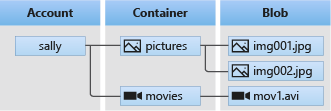
Once the storage account is created, you need to create a container within the storage account where blobs can be stored. A container acts like a directory where you can group blobs.
Go to your storage account in the Azure portal.
Under the "Blob service" section, click on "Containers."
Click on "+ Container" and provide a name for your container. You can also set the public access level (Private, Blob, or Container).
Click on "Create" to create the container.
Uploading and Managing Blobs
Once your container is ready, you can start uploading blobs. Blobs can be uploaded through the Azure portal, Azure Storage Explorer, Azure CLI, or programmatically using Azure SDKs for various programming languages such as .NET, Java, Python, and Node.js.
Uploading Blobs via Azure Portal
Navigate to your container within the storage account.
Click on "Upload" and select the file you want to upload.
You can also set the blob type (Block blob, Page blob, or Append blob) and the access tier (Hot, Cool, or Archive) for the uploaded blob.
Click on "Upload" to complete the process.
Using Azure Storage Explorer
Azure Storage Explorer is a standalone application that makes it easy to work with Azure Storage data on Windows, macOS, and Linux. You can download it from the Azure Storage Explorer website.
Open Azure Storage Explorer and connect to your Azure account.
Navigate to your storage account and expand it to see the containers.
Right-click on the container where you want to upload a blob and select "Upload" > "Upload Files" or "Upload Folder" depending on your needs.
Select the files or folder and click on "Upload."
Security and Access Control
Security is a top priority when it comes to storing data in the cloud. Azure Blob Storage provides several mechanisms to secure your data.
Encryption
Azure Blob Storage automatically encrypts all data at rest using Azure Storage Service Encryption (SSE). This uses 256-bit AES encryption and is enabled by default for all storage accounts. Additionally, data in transit is protected using HTTPS.
Role-Based Access Control (RBAC)
RBAC allows you to assign roles to users, groups, or applications at the storage account level. Common roles include:
Storage Blob Data Owner: Full access to blob containers and data, including POSIX access control.
Storage Blob Data Contributor: Read, write, and delete access to blob containers and data.
Storage Blob Data Reader: Read-only access to blob containers and data.
Shared Access Signatures (SAS)
SAS tokens provide a way to grant limited access to blobs and containers without sharing your storage account keys. A SAS token can specify the permissions granted (read, write, delete, list), the time period during which the SAS is valid, and the IP addresses from which requests can originate.
Access Control Lists (ACLs)
For hierarchical namespace-enabled accounts (Azure Data Lake Storage Gen2), you can use POSIX-compliant ACLs to manage access to directories and files.
Storage Tiers and Lifecycle Management
Azure Blob Storage offers three main storage tiers: Hot, Cool, and Archive. The choice of tier depends on how frequently you need to access the data and how long you need to store it.
Hot Tier: Optimized for frequently accessed data. It has higher storage costs but lower access costs.
Cool Tier: Optimized for infrequently accessed data stored for at least 30 days. It has lower storage costs but higher access costs compared to the Hot tier.
Archive Tier: Optimized for rarely accessed data stored for at least 180 days. It has the lowest storage costs but the highest access costs and requires rehydration (moving the blob back to the Hot or Cool tier) before it can be accessed.
To manage the lifecycle of your blobs and automatically move them between storage tiers based on defined rules, you can use Azure Blob Storage lifecycle management policies. For example, you can set a policy to move blobs from the Hot tier to the Cool tier after 30 days of no access, and then to the Archive tier after 90 days.
Setting Up a Lifecycle Management Policy
Navigate to your storage account in the Azure portal.
Under the "Blob service" section, click on "Lifecycle management."
Click on "Add a rule" and provide a rule name.
Select the rule scope (apply to all blobs in the storage account or a specific subset based on prefix or blob index tags).
Define the actions such as "Base blobs" actions (tier to cool storage, tier to archive storage, delete blob, etc.) and "Snapshot" actions (delete snapshots older than a certain number of days).
Click on "Review + add" and then "Add" to save the rule.
Real-World Use Cases
Azure Blob Storage is used in a variety of real-world scenarios. Here are a few examples:
Backup and Disaster Recovery
Blob Storage is an ideal solution for backup and disaster recovery due to its high durability and availability. By using geo-redundant storage (GRS), your data is replicated to a secondary region, providing an additional layer of protection against regional outages.
Media Storage and Streaming
Blob Storage can store large media files such as videos and images. By using Azure CDN (Content Delivery Network) in conjunction with Blob Storage, you can deliver media content to users with low latency and high throughput.
Big Data and Analytics
Blob Storage can act as a data lake for big data analytics. By using Azure Data Lake Storage Gen2, which builds on Blob Storage, you can perform analytics on massive amounts of unstructured data using tools like Azure Databricks, Azure HDInsight, and Azure Synapse Analytics.
Static Website Hosting
Azure Blob Storage allows you to host static websites directly from a blob container. This is a cost-effective way to host websites that consist of HTML, CSS, JavaScript, and image files.
Advanced Troubleshooting Strategies
As a cloud architect, you need to be prepared to troubleshoot issues that may arise with Azure Blob Storage. Here are some common issues and their troubleshooting strategies:
Blob Upload Failures
If you encounter issues while uploading blobs, check the following:
Network Connectivity: Ensure that your network connection is stable and that there are no firewall rules blocking access to Azure Blob Storage endpoints.
Permissions: Verify that you have the necessary permissions (e.g., Storage Blob Data Contributor) to upload blobs to the container.
Storage Account Limits: Check if you are hitting any storage account limits such as request rate limits or capacity limits.
Blob Access Failures
If you are unable to access blobs, consider the following:
Access Tiers: If a blob is in the Archive tier, it needs to be rehydrated to the Hot or Cool tier before it can be accessed.
SAS Token Expiry: If you are using a SAS token, make sure that it has not expired and that it has the necessary permissions.
RBAC Roles: Ensure that the user or service principal has the appropriate RBAC role assigned.
Performance Issues
If you experience performance issues such as slow uploads or downloads, consider the following:
Blob Size and Type: For large blobs, consider using block blobs and breaking the data into smaller blocks for parallel uploads.
Network Bandwidth: Check your network bandwidth and consider using Azure ExpressRoute for a dedicated network connection to Azure.
Storage Account Performance: For high-performance needs, consider using Premium storage accounts which offer higher IOPS and lower latency.
Conclusion
Azure Blob Storage is a powerful and flexible object storage solution that can meet a wide range of storage needs. By understanding its core features, security mechanisms, storage tiers, and real-world use cases, you can effectively leverage Blob Storage in your cloud architecture. As a senior cloud architect, it is crucial to stay updated with the latest features and best practices to make the most out of Azure Blob Storage.
By following the guidelines and strategies outlined in this post, you should be well-equipped to implement, manage, and troubleshoot Azure Blob Storage in your enterprise IT infrastructure. Whether you are storing backups, hosting static websites, or managing big data, Azure Blob Storage provides a reliable and scalable solution that can grow with your needs.
Feature: Azure Blob Storage offers scalable, secure, and highly available object storage for unstructured data.
Benefit: It provides a robust platform for a variety of use cases such as backup, disaster recovery, media storage, and big data analytics.
Permissions: Roles such as Storage Blob Data Owner, Storage Blob Data Contributor, and Storage Blob Data Reader are used to manage access.
Backup: Azure Blob Storage itself can be used for backup and disaster recovery, with options like geo-redundant storage (GRS) for additional data protection.
This blog post should provide a solid foundation for any IT professional looking to deepen their understanding of Azure Blob Storage and its applications in a real-world context.


Comments
Post a Comment