Azure AD Security Defaults: What They Are and Why You Should Use Them
Azure AD Security Defaults: What They Are and Why You Should Use Them

Introduction
Azure AD Security Defaults provide a simple way to implement essential security settings in your Azure AD directory and Office 365 environment. While they may not be suitable for every organization, they are an excellent option if you have not yet enabled multi-factor authentication (MFA) or disabled legacy authentication.
Why Security Defaults Matter
Office 365 environments are generally secure, with regular patches and updates. However, default settings have traditionally prioritized backward compatibility over security, leaving many tenants vulnerable to attacks like password spraying. Attackers can use automated scripts to attempt logins without an MFA mechanism in place, making organizations susceptible to unauthorized access.
Security Defaults vs. Baseline Conditional Access Policies
Security Defaults replace the older Baseline Conditional Access policies and are available for free to all Office 365 subscriptions, regardless of Azure AD Premium licensing. Previously, per-user MFA in Office 365 lacked features like the Authenticator app, which Security Defaults now include.
Key Features of Security Defaults
Enabling Security Defaults enforces the following security measures:
- Mandatory Multi-Factor Authentication (MFA): Administrators and end-users must enable MFA within 14 days of their next sign-in.
- Blocking Legacy Authentication: Older clients and authentication methods such as Office 2010, IMAP, POP3, SMTP, and ActiveSync that do not support Modern Authentication will be restricted.
- Immediate MFA Protection for Privileged Actions: Actions within the Azure Resource Manager API (e.g., Azure Portal Access, Azure PowerShell, and Azure CLI) require MFA.
Impact on Office 365 Migrations
New Office 365 subscriptions will have Security Defaults enabled by default. This can impact migrations in the following ways:
- Outlook Clients: After mailbox migration, Outlook may fail to connect due to legacy authentication settings.
- Legacy Authentication Processes: Organizations using IMAP, POP3, or older Office clients may need to disable Security Defaults temporarily or configure necessary registry keys for a smooth transition.
Most up-to-date Office 365 Pro Plus clients, mobile Office apps, and ActiveSync clients (such as iOS Mail, Gmail, and Samsung Mail) support Modern Authentication and will function without issues.
Security Defaults vs. Azure AD Conditional Access
While Security Defaults improve security, they lack the flexibility of Azure AD Conditional Access, which allows organizations to:
- Define Trusted Locations: Avoid MFA prompts for domain-joined devices in known locations.
- Manage Device-Based Access: Control access for managed and unmanaged devices.
- Restrict High-Risk Sign-Ins: Block sign-ins from unauthorized devices or networks.
Security Defaults enforce MFA universally, which can be inconvenient for some users. Organizations with specific security requirements may still need Azure AD Premium for Conditional Access policies.
How to Enable or Disable Security Defaults
Security Defaults can be enabled if Conditional Access policies are not in use. However, once Conditional Access policies are configured, Security Defaults must be disabled.
Steps to Enable Security Defaults:
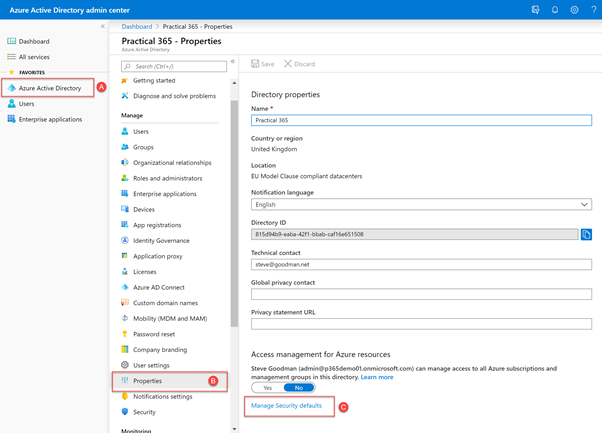
- Sign in as a Global Administrator to the Azure AD Portal.
- Navigate to Azure Active Directory > Properties.
- Scroll down and select Manage Security Defaults.
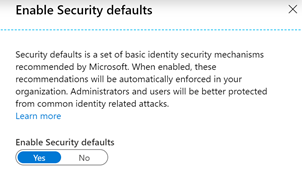
- Toggle Enable Security Defaults to On.
- Save your changes.
If you need to disable Security Defaults to implement Conditional Access, you can do so by following the same steps and setting the toggle to Off after configuring Conditional Access policies.
Conclusion
Security Defaults are a valuable addition to Azure AD and Office 365, providing a baseline level of security at no extra cost. While they lack advanced configurations like trusted locations, they offer an essential security layer for organizations without Azure AD Premium. Microsoft’s initiative ensures that more organizations are secured by default, reducing vulnerabilities and increasing overall security posture.
Organizations that need more control over MFA settings and authentication policies should consider upgrading to Azure AD Premium for Conditional Access features.



Comments
Post a Comment